Native Windows desktop app with a signed installer. Everything needed to connect is included. No separate WireGuard or .NET installation is required. Approve the Windows Administrator prompt during setup.
Run the JapanVPN installer and approve the Windows Administrator prompt.
Sign in to your account and create a ten-minute device code.
Open JapanVPN, enter your device code, and connect.
Confirm your public IP is in Japan.
WINDOWS INSTALLATION HELP
Seeing a security warning?
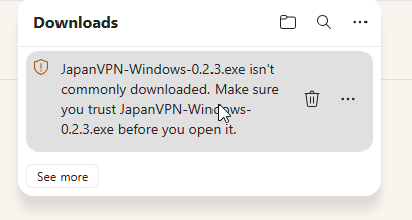
Microsoft Edge and Windows may show SmartScreen prompts while a new download builds its reputation. Only continue with the JapanVPN installer you downloaded from getjapanvpn.com, and check that the publisher information includes Matthew Sampt.
1. Keep the download in Microsoft Edge
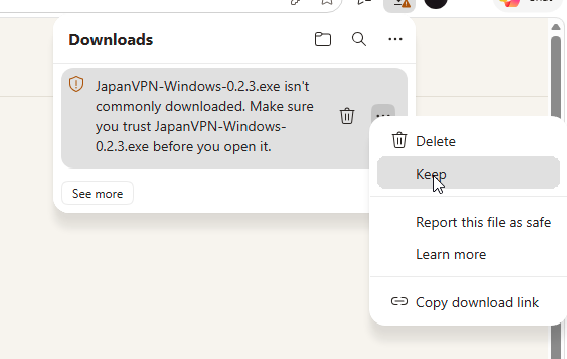
Open Edge’s Downloads panel. Find the JapanVPN installer with the “isn’t commonly downloaded” message and click the three dots (…) beside that file.
Choose Keep from the file’s menu.
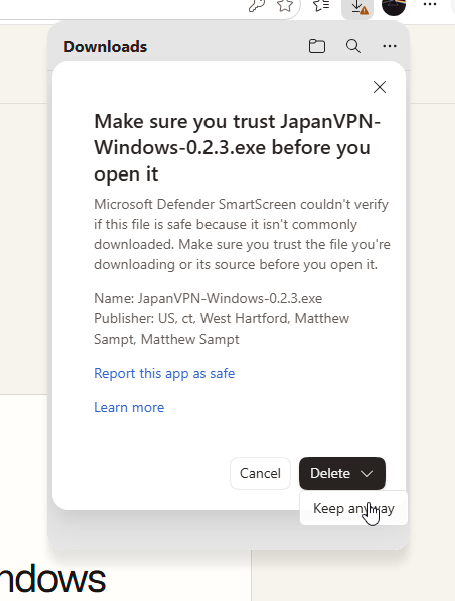
In the confirmation panel, check the publisher, click the arrow beside Delete, and select Keep anyway. Once the download finishes, choose Open file.
2. Open the installer in Windows
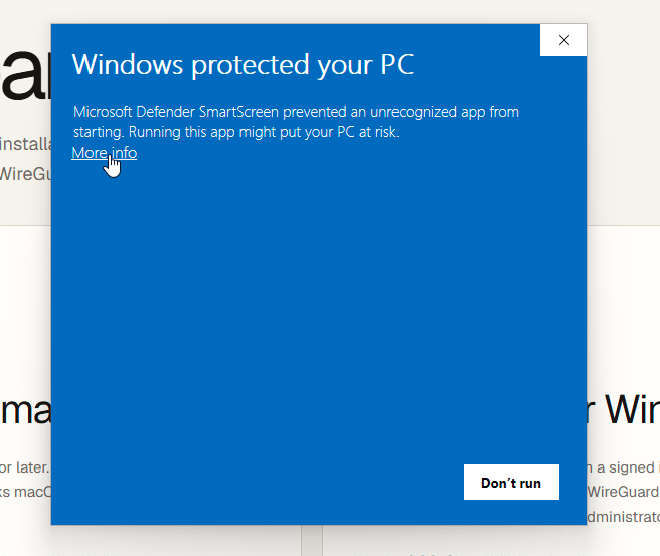
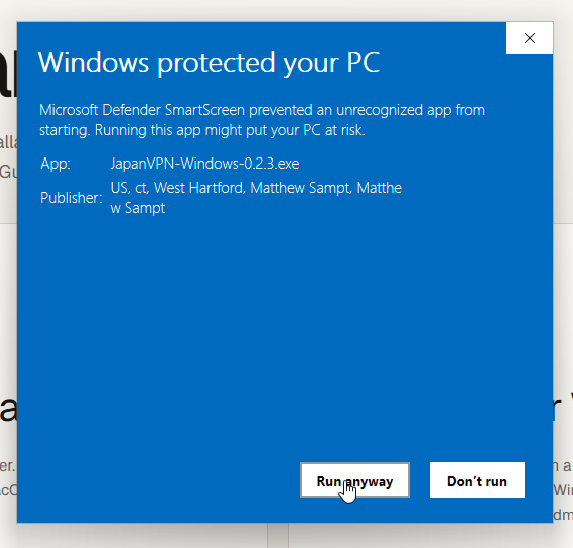
If “Windows protected your PC” appears, click More info.
Check that the app is the JapanVPN installer and the publisher information includes Matthew Sampt. Click Run anyway, then approve the Windows Administrator prompt and follow the installer.
Keep Microsoft Defender and SmartScreen enabled. If the publisher is different or unknown, stop and contact support. If a work or school computer does not offer these options, ask your IT administrator.
Windows shows the verified publisher when you open the installer. You can also check the file below in PowerShell. Enter your device code only in JapanVPN.