Drag JapanVPN into Applications, then open JapanVPN from Applications.
Follow the prompts below. The order and wording can vary with your macOS version.
INSTALLATION GUIDE
From download to connected.
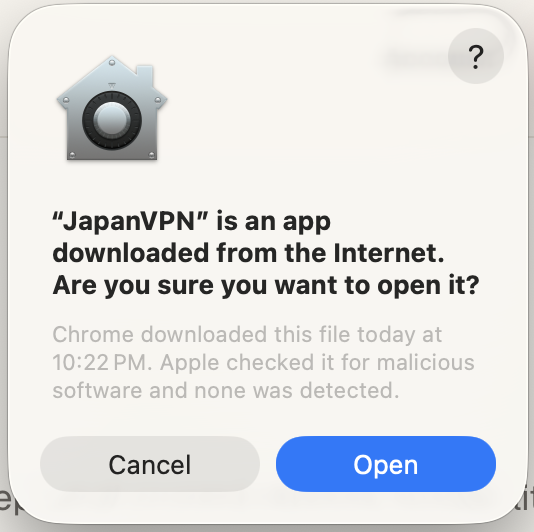
1. Open JapanVPN
On the first launch, macOS may ask whether you want to open an app downloaded from the Internet. Check that the app is JapanVPN, then click Open.
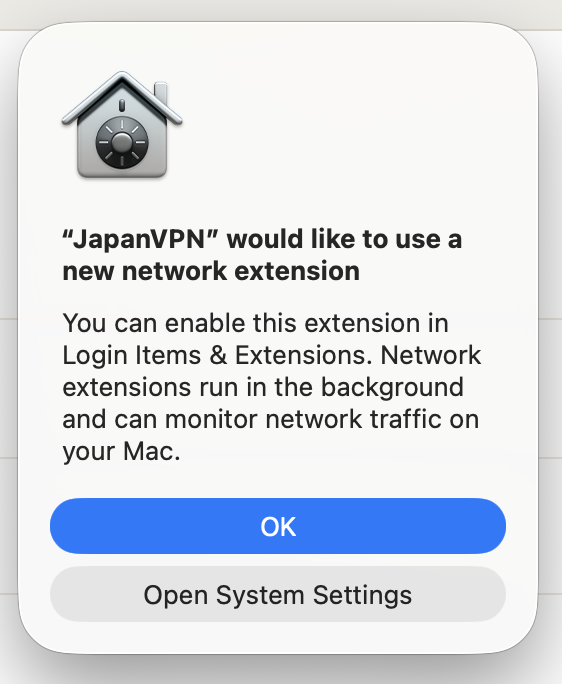
2. Open the extension settings
When JapanVPN asks to use a new network extension, click Open System Settings. This extension lets JapanVPN create the VPN tunnel.
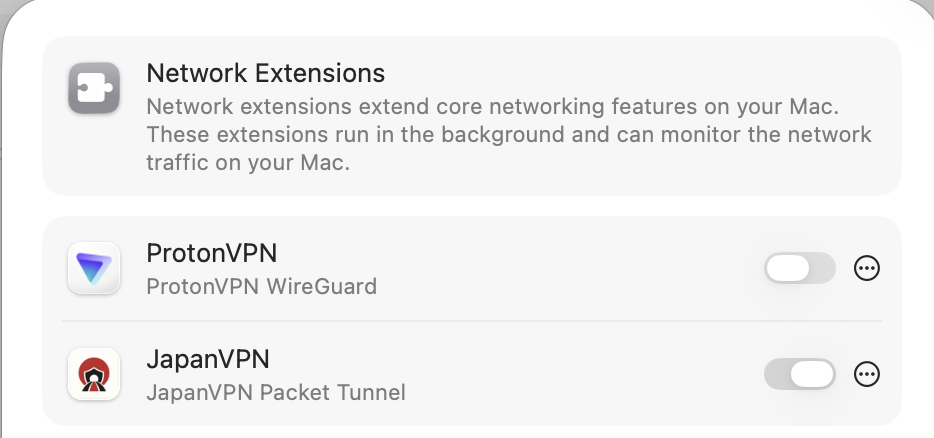
3. Enable JapanVPN’s network extension
In System Settings, find Login Items & Extensions, then Network Extensions. Turn on JapanVPN — JapanVPN Packet Tunnel and approve any confirmation. Settings names may differ on older macOS versions.
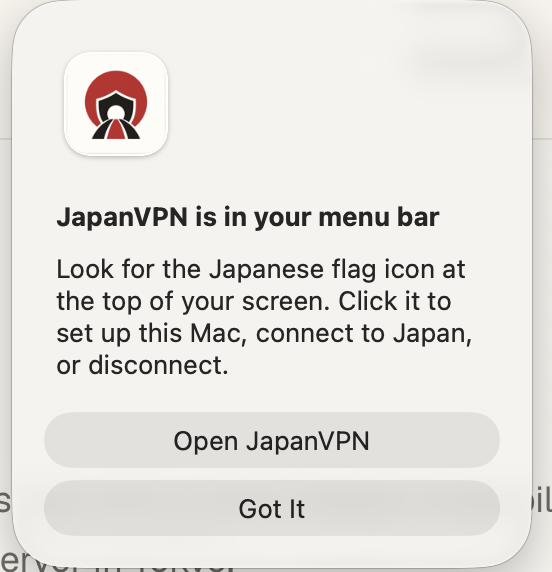
4. Set up this Mac from the menu bar
JapanVPN runs in your menu bar. Click Open JapanVPN or the Japanese flag icon at the top of your screen. In your Devices dashboard, create an enrollment code and choose Copy code. Return to JapanVPN, start setup, and paste the code. Keep the code private and use it within ten minutes.
5. Finish setup and connect
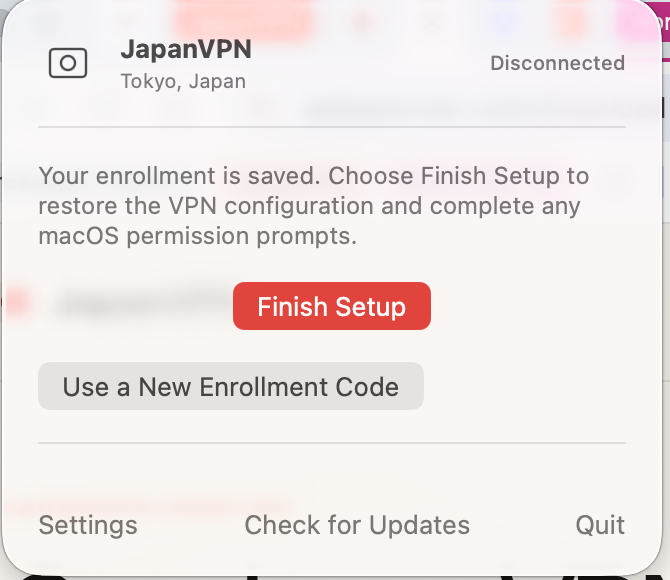
If the app says your enrollment is saved and shows Finish Setup, click it to complete the remaining macOS permission prompts. You can reuse the saved enrollment; you do not need a new code for this step. If macOS asks to add a VPN configuration, approve it. Then connect in JapanVPN and confirm the app shows it is connected.
If a permission prompt was dismissed, reopen JapanVPN from the menu bar and finish setup. If you still need help, contact support.